Video Submission Guide
Hosting Requirements
CatBox is a great, free file host. They allow a maximum of 200 megs per file. Here are instructions on one way to reduce your file sizes if you need to:
How to Reduce Your File Size
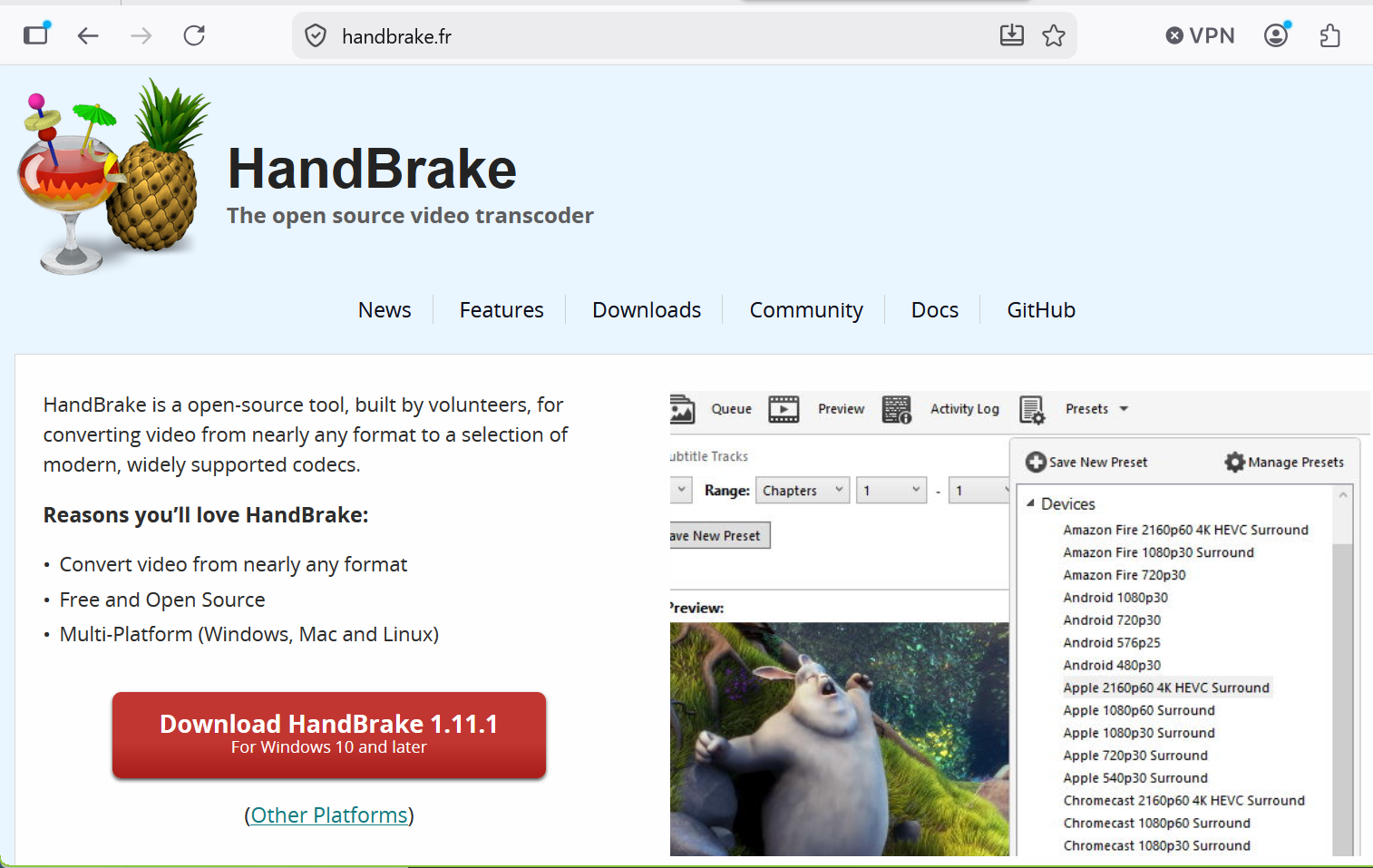
Step 1: Download free HandBrake software.
Step 2: Adjust Settings
Open a file in HandBrake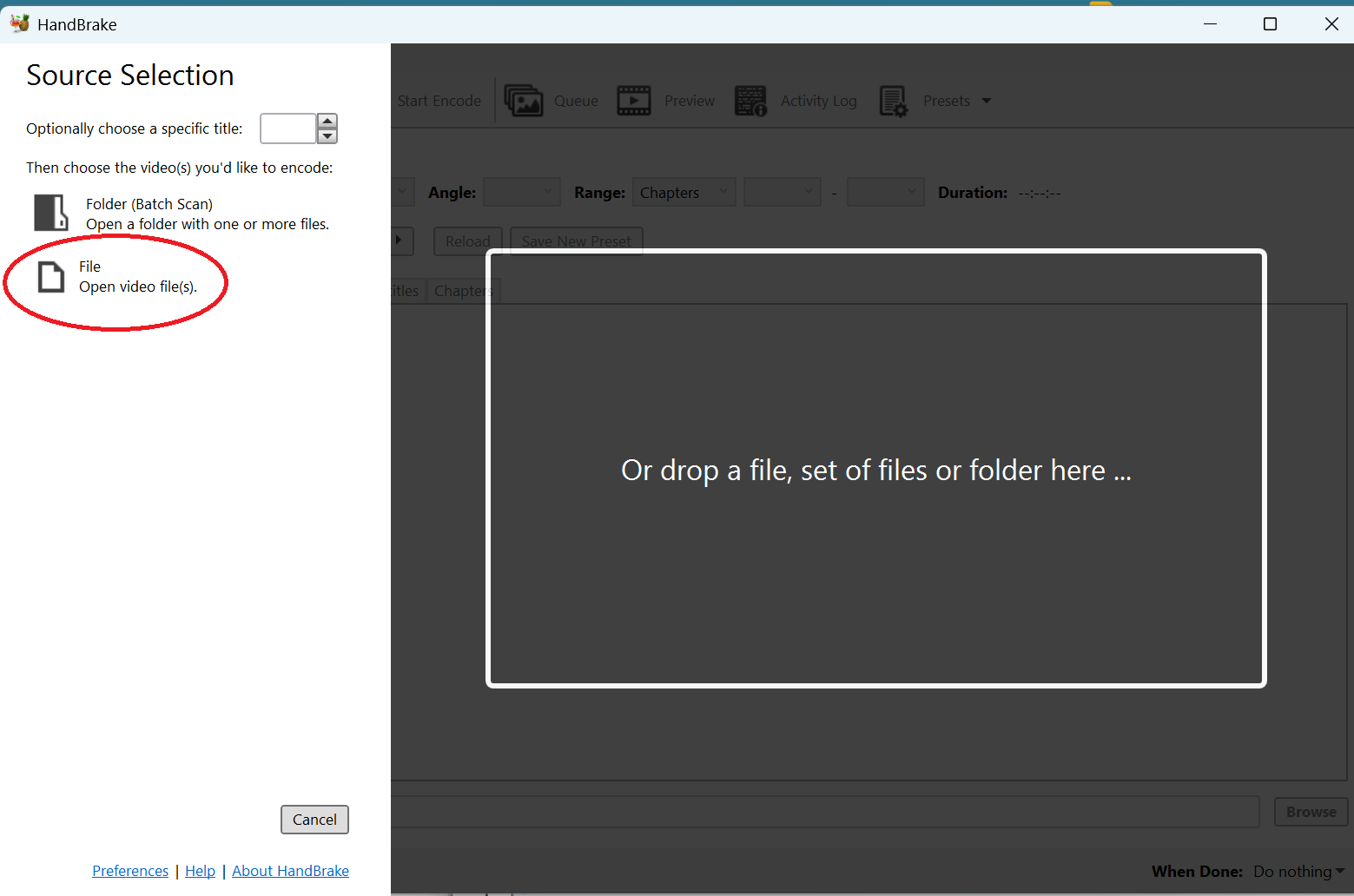
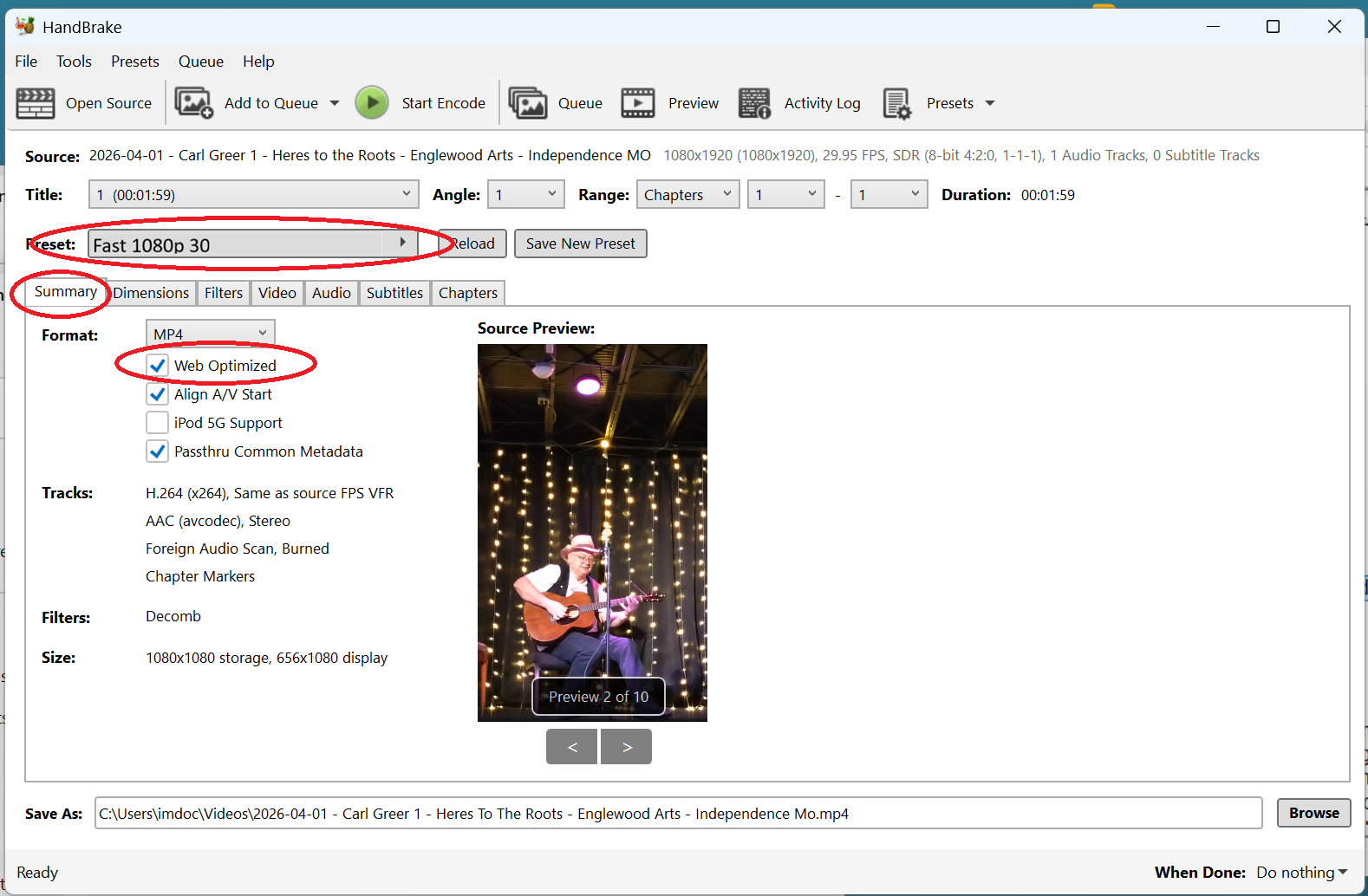
To reduce the file size but keep the audio quality, go to the summary tab, select the preset "Fast 1080p30" and then make the adjustments shown below.
In the summary tab, check "Web Optimized".
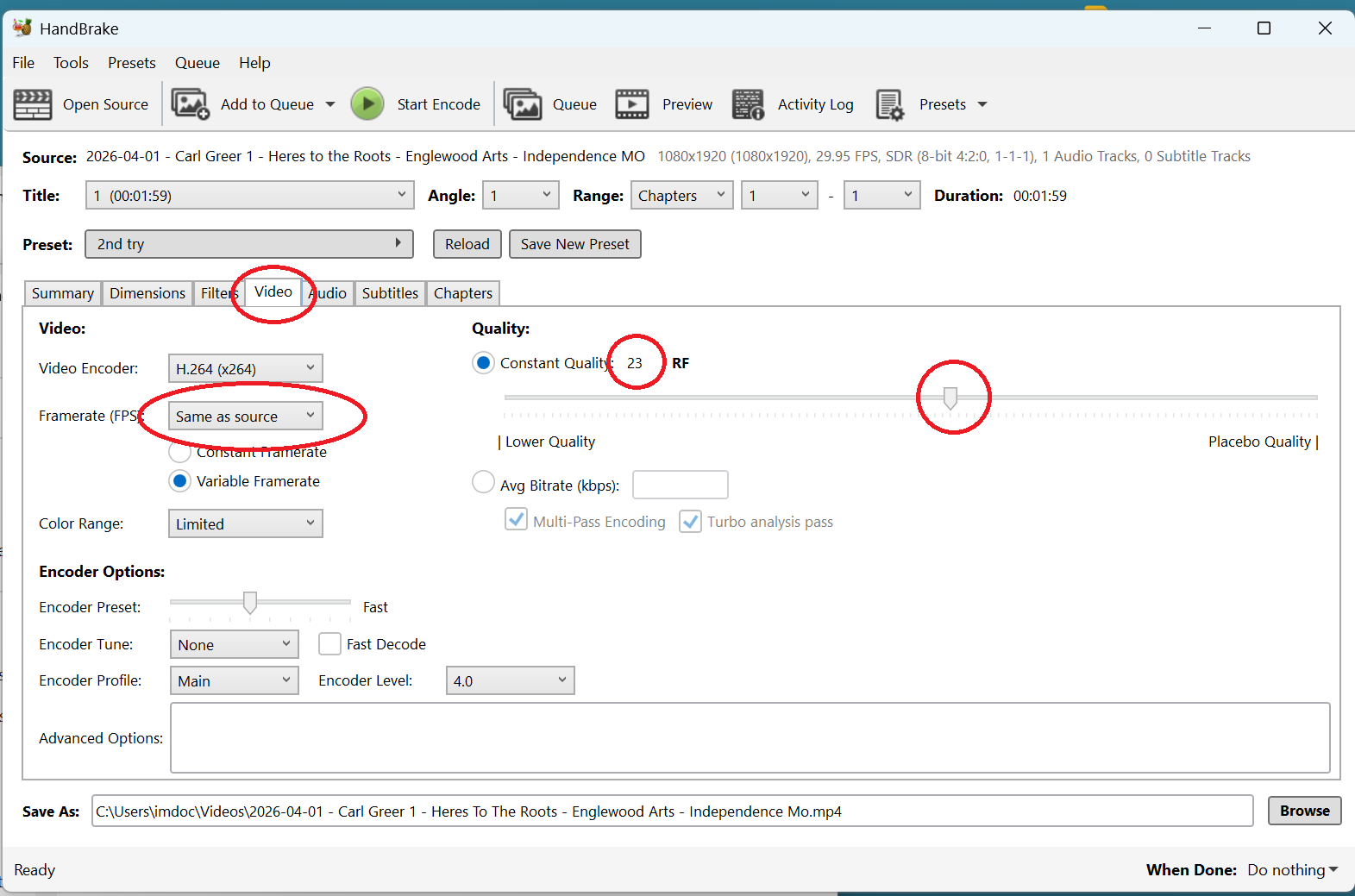
In the video tab, go to "Framerate" and select "Same as Source". Move slider bar to 23.
Now that you have the settings adjusted, you can go back to the summary tab, select "Save New Preset" and choose to save your current settings as a preset for future use.
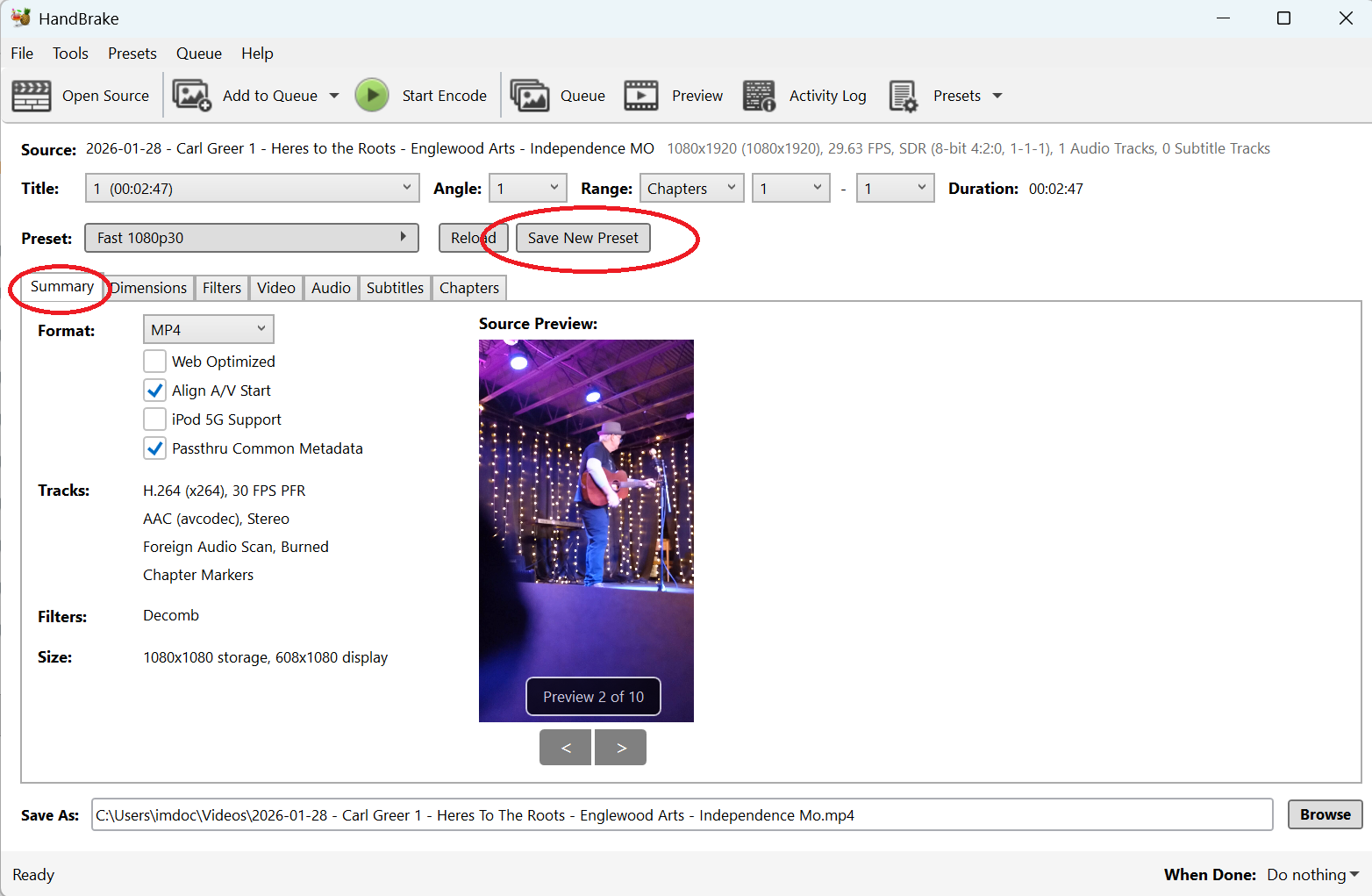
Step 3: Batch Processing
1. Open the first video
2. Add to queue
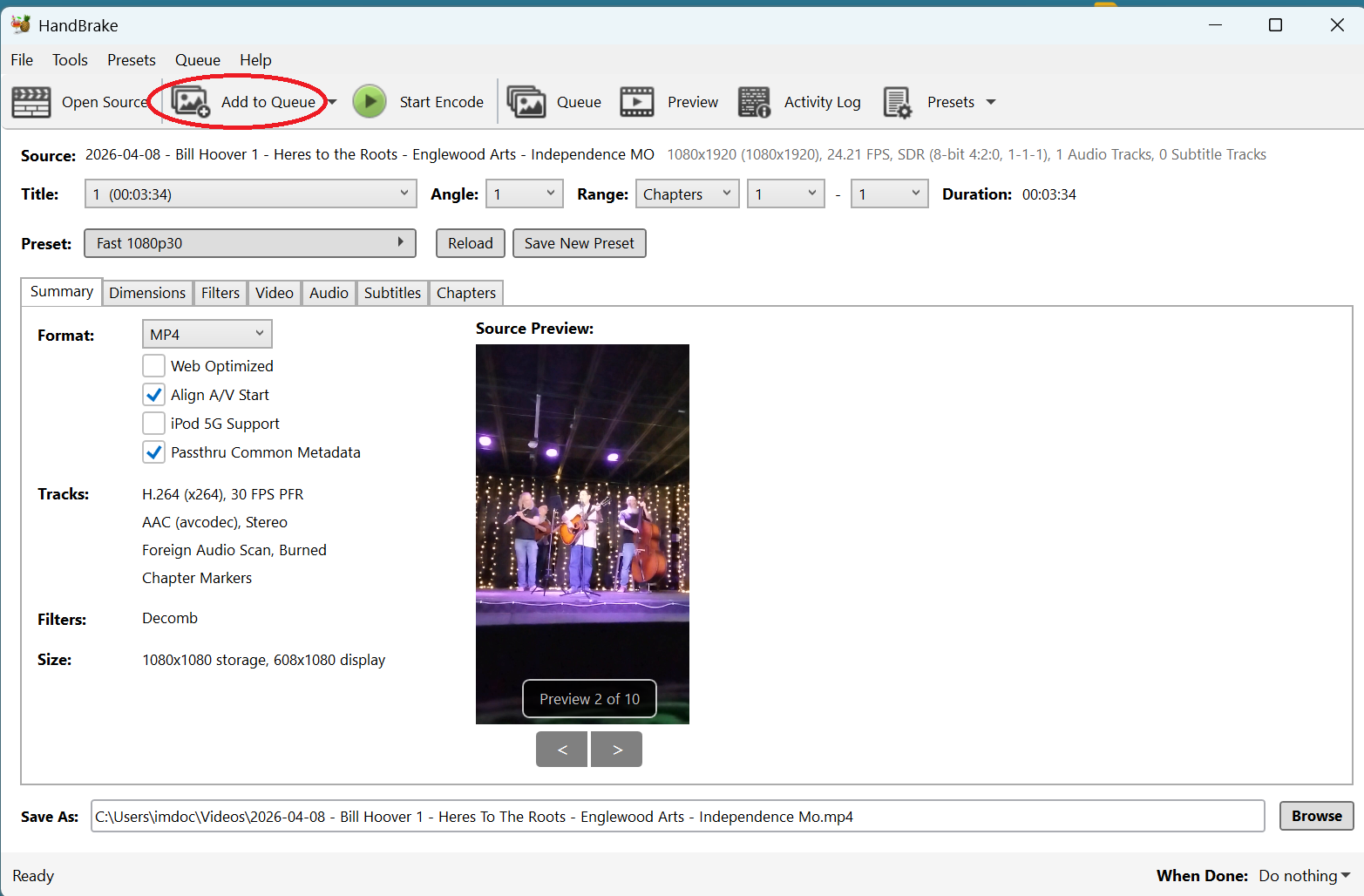
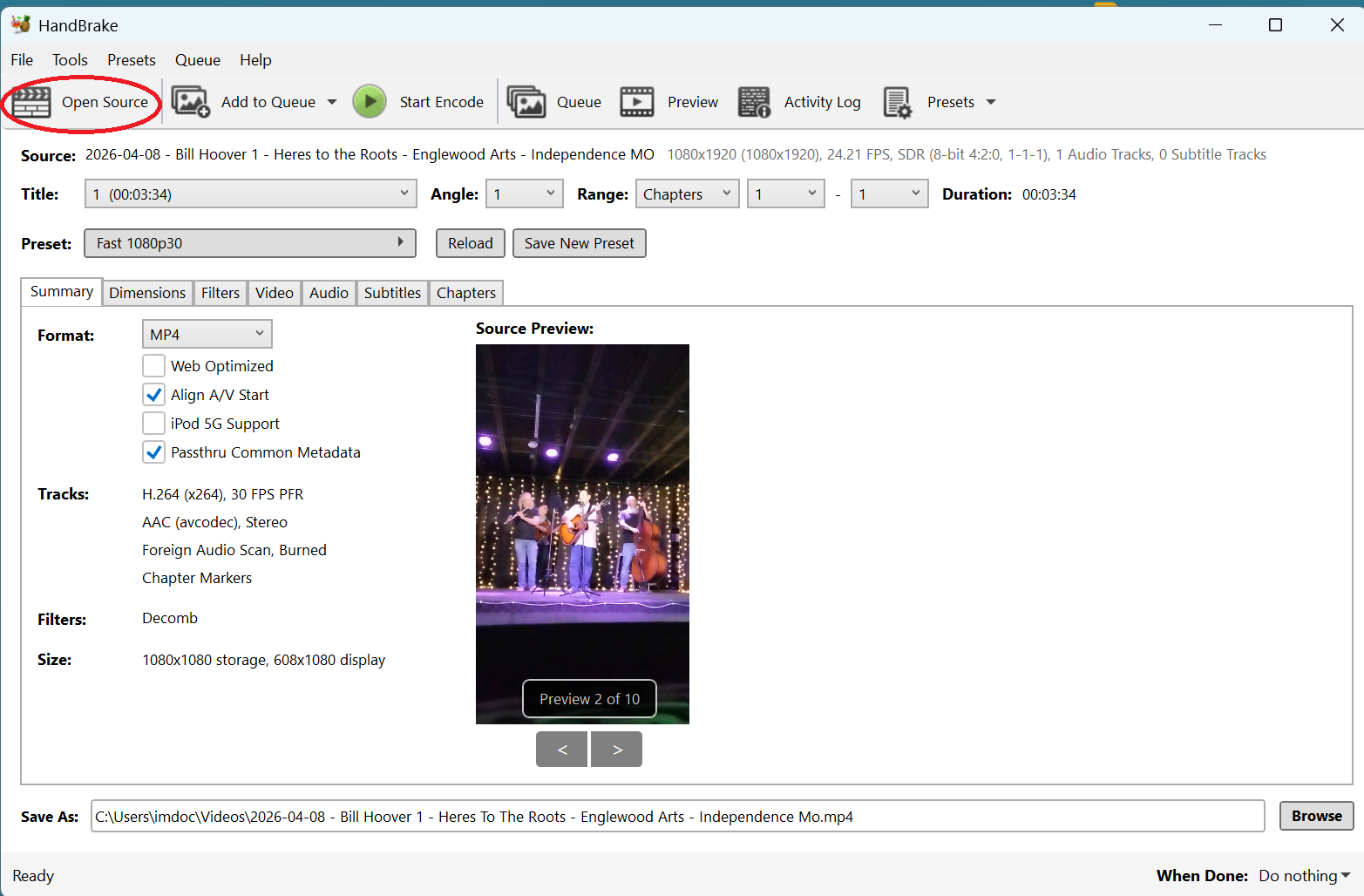
3. Select "Open Source"
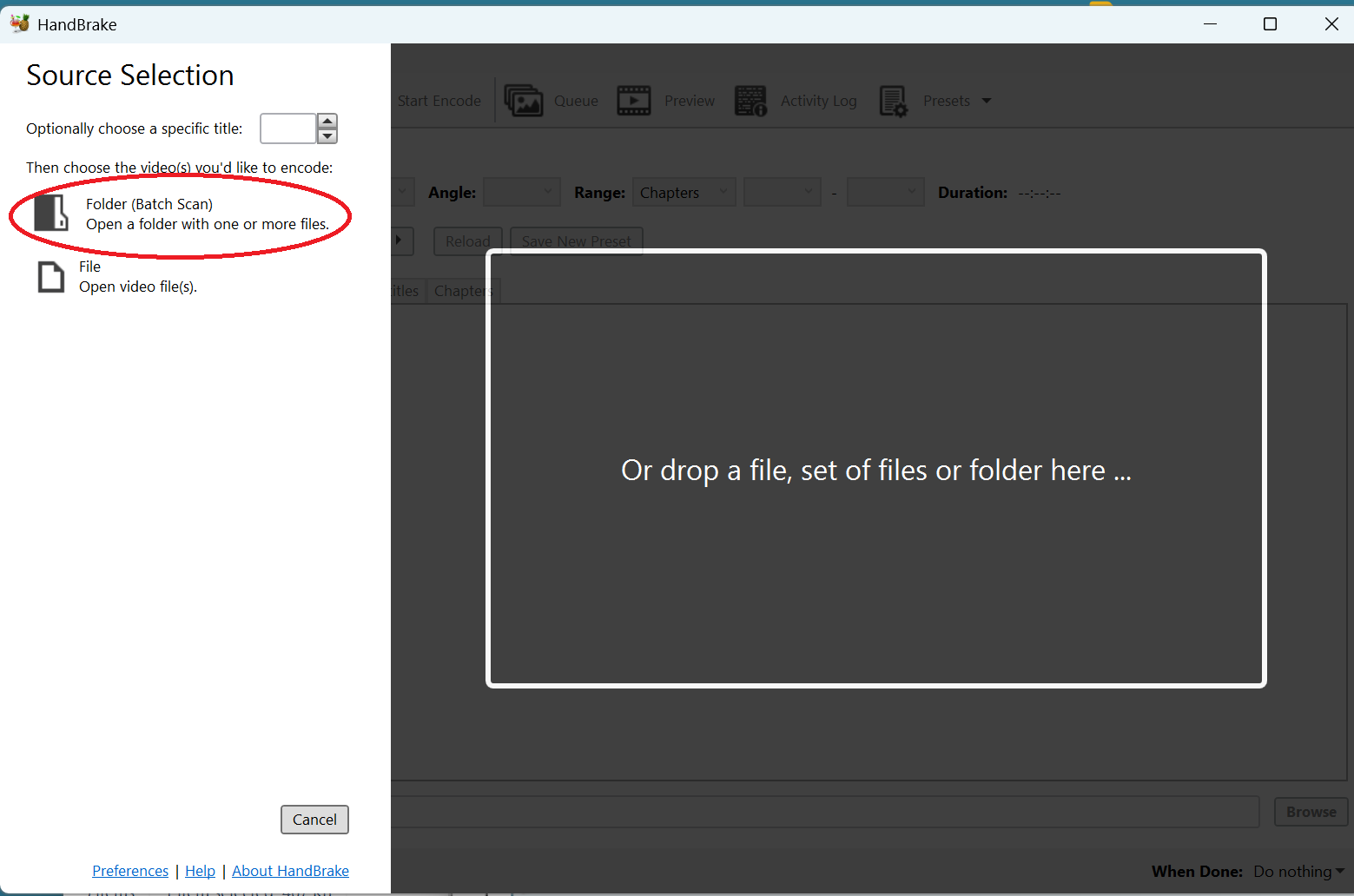
4. Choose "Folder (Batch Scan)"
5. Select the folder you want to upload
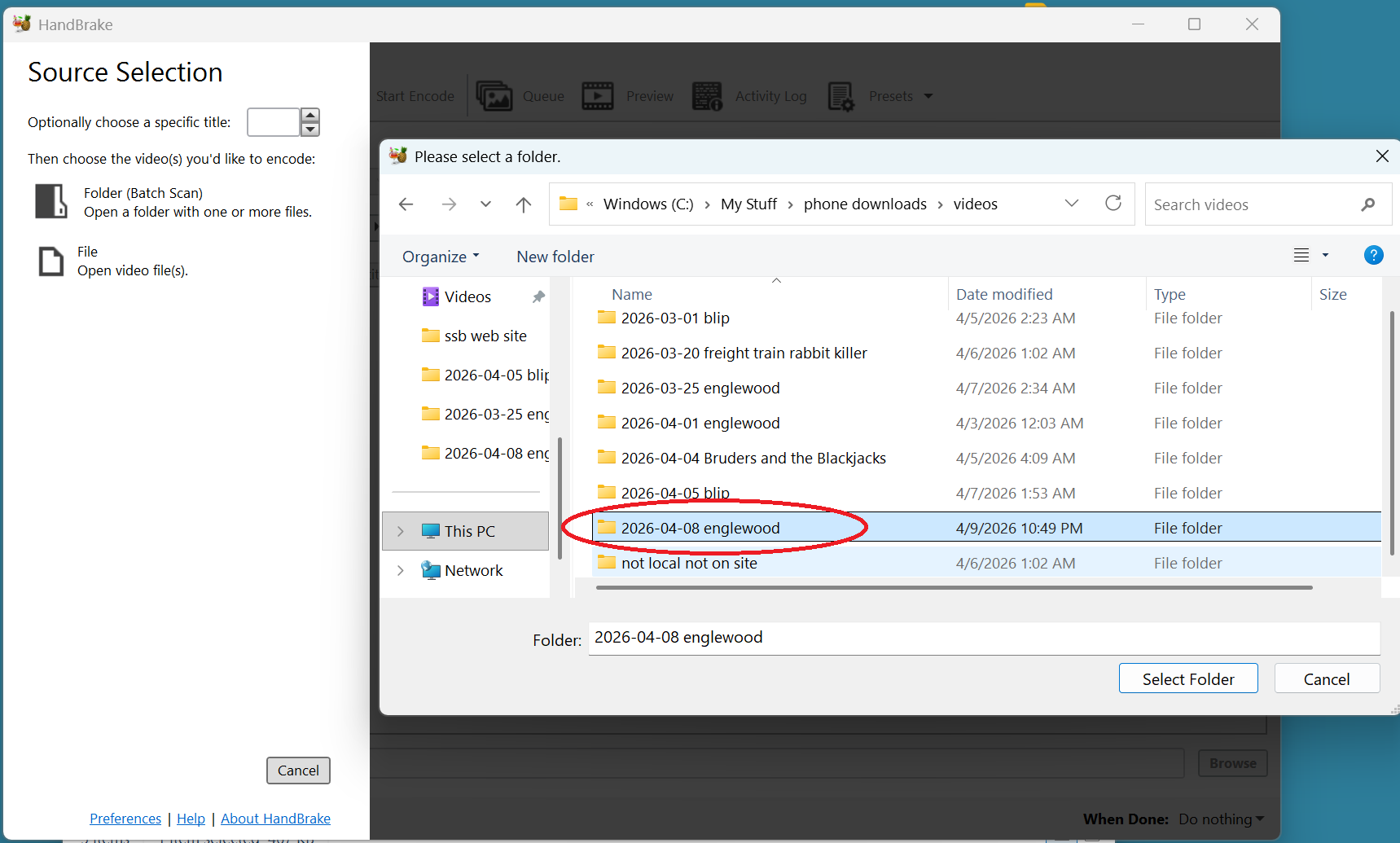
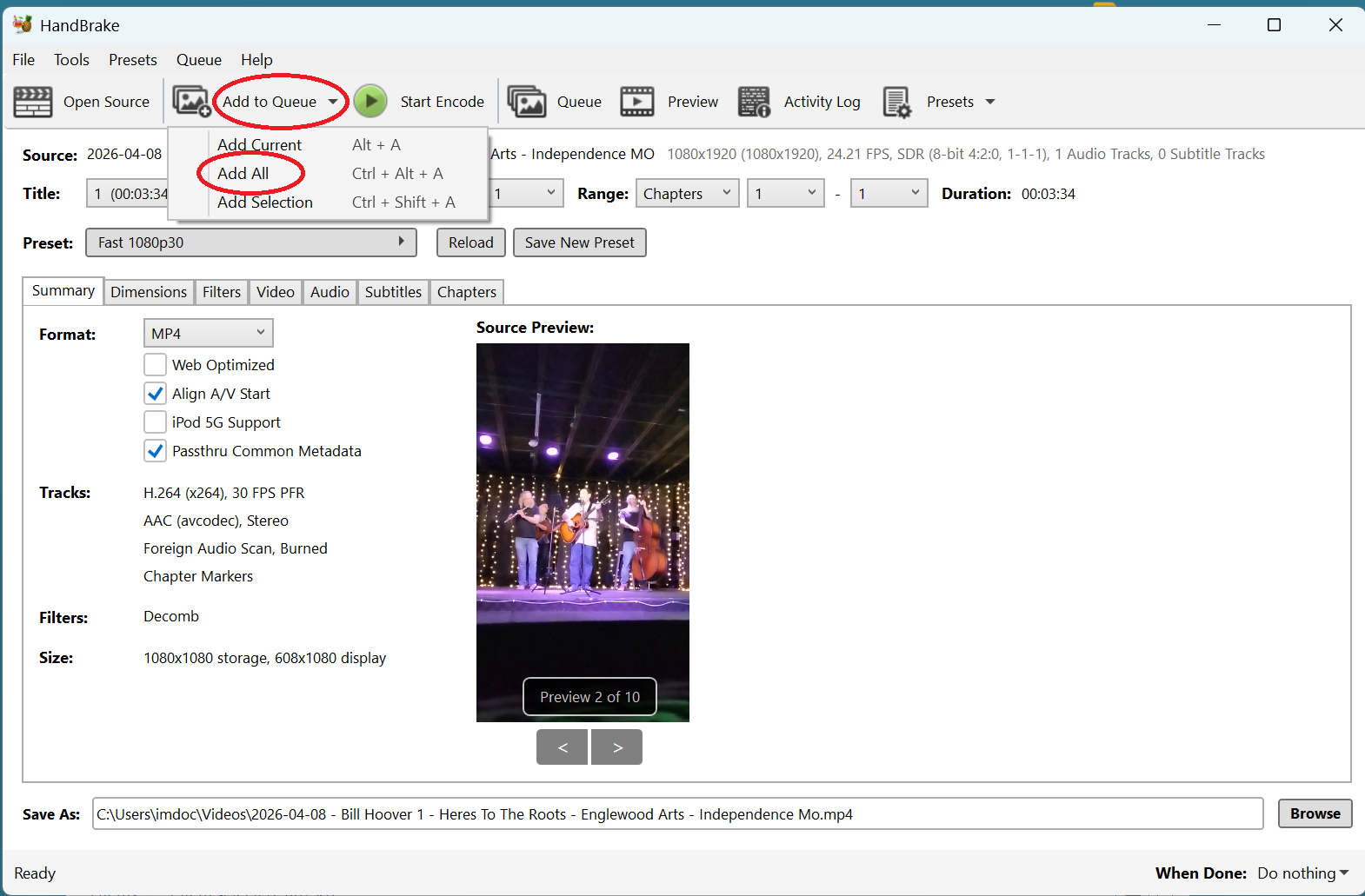
6. Use the Queue dropdown to "Add All" to Queue
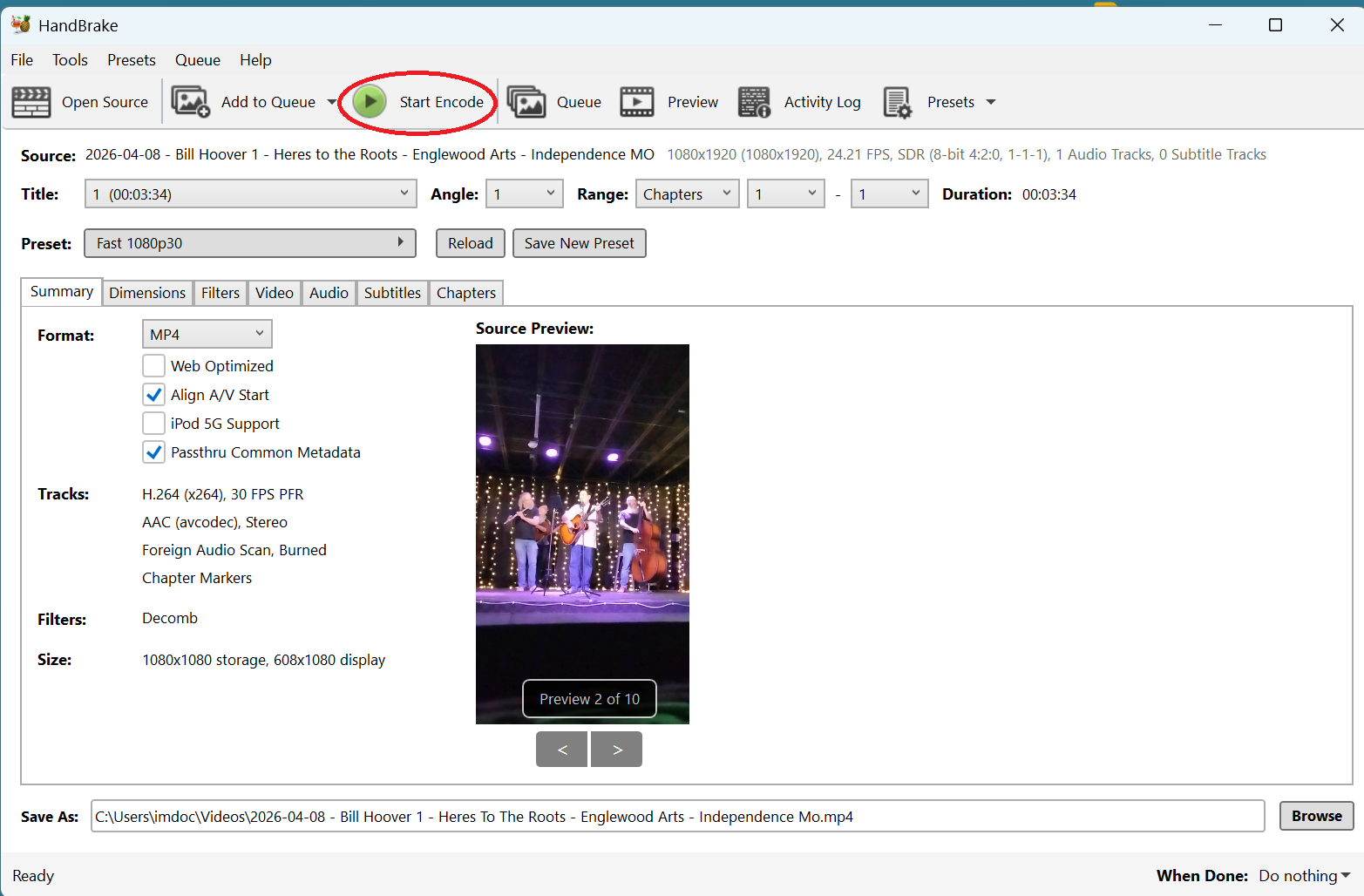
7. Start Encode
Step 4: Submit Your Files to the Archive
Upload files to CatBox and then Submit Your Audio and/or Video of Kansas City Area Performers. If you are having trouble getting CatBox to upload your files, try cleaning your cookies and restarting your computer. I have gone ahead and just gotten in the habit of restarting and cleaning before opening CatBox.